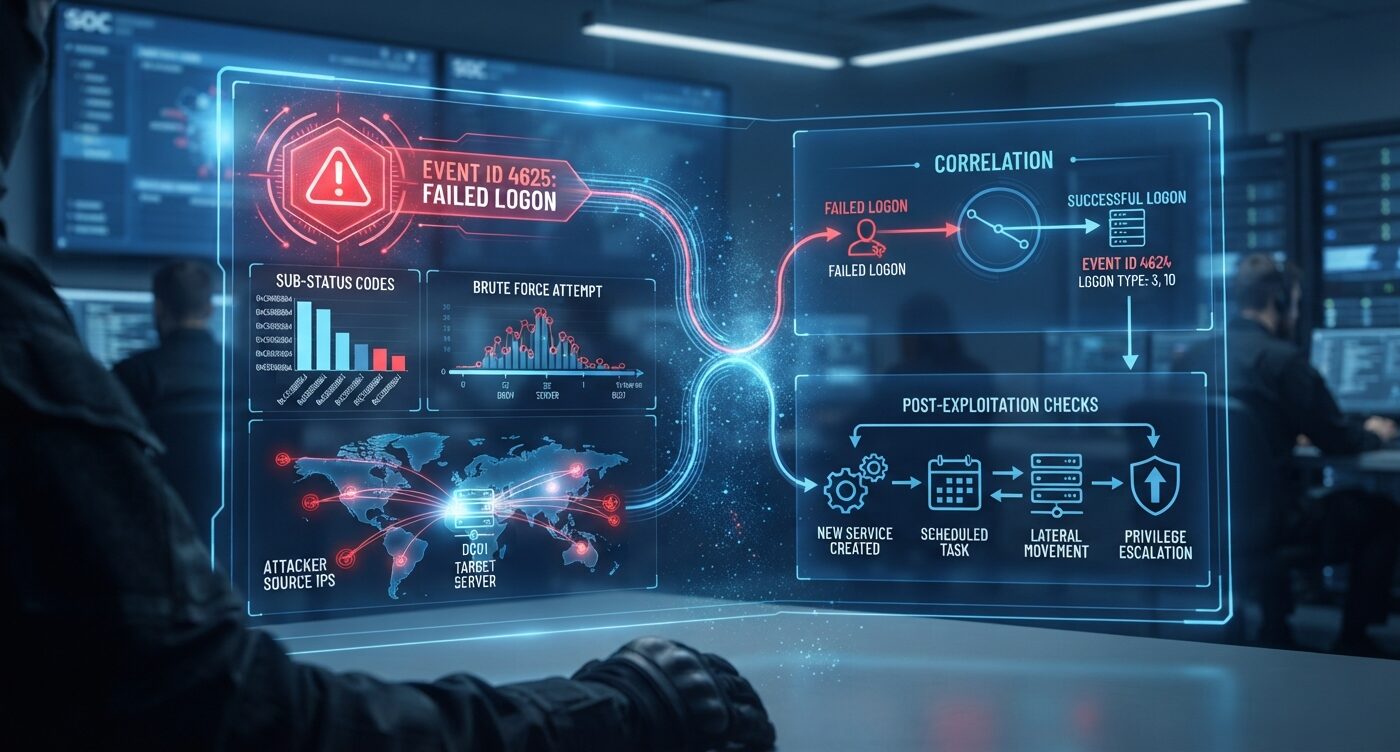
Event ID 4625 is the Windows Security log entry for a failed logon. By the end of this guide you will be able to tell who was targeted, from where, how, and whether any attempt later got through.
What you need
- Administrator rights on the machine, or membership in the Event Log Readers group, to read the Security log
- Event Viewer or Windows PowerShell on the machine that was targeted
- Access to the domain controller if the account is a domain account
- Audit Logon (and ideally Audit Account Lockout) set to log failures, or 4625 events will be missing
- A firewall or router log if you want to trace the source address further
This guide describes Windows Server 2016 to 2022 with the Advanced Audit Policy settings. Field names and wording can differ on older versions.
Step 1: Find the events
Open Event Viewer, go to Windows Logs, then Security, and filter the current log for event ID 4625. The event is titled “An account failed to log on” and is written on the computer where the logon was attempted.
For domain accounts, the domain controller may also record related failures as 4771 (Kerberos pre-authentication failed) or 4776 (credential validation failed). Check the target server and the domain controller. Remote Desktop failures against domain accounts do not always produce a 4625 on every server, so a missing 4625 is not proof that nothing was tried.
To check that failure auditing is on, run this in an elevated prompt:
auditpol /get /subcategory:"Logon"To pull the last 24 hours of 4625 events in PowerShell:
Get-WinEvent -FilterHashtable @{LogName='Security'; Id=4625; StartTime=(Get-Date).AddHours(-24)}If nothing matches, PowerShell reports that no events were found. That is an error message, not a clean bill of health.
Step 2: Read the key fields
Open one event and read these fields.
- Account Name under “Account For Which Logon Failed”: the account that was targeted. The Subject block above it is the account that reported the failure, often SYSTEM or the machine, so do not read it as the attacker.
- Logon Type: how the attempt was made. Type 2 is at the keyboard, 3 is over the network, 4 is a batch job, 5 is a service, 7 is a workstation unlock, 10 is Remote Desktop. With Network Level Authentication (a check done before the full session starts), Remote Desktop attempts often log as type 3, so treat type 3 as possible RDP as well as file shares.
- Source Network Address and Workstation Name: where the attempt came from. Either can be blank, a dash, or a loopback address, and a proxy or NAT device shows its own address instead of the real client.
- Status and Sub Status: the failure codes. Read both.
The codes you will see most often:
- 0xC000006A: the account exists but the password was wrong (usually in Sub Status)
- 0xC0000064: the account name does not exist (usually in Sub Status)
- 0xC0000072: the account is disabled (Sub Status, with Status often 0xC000006E)
- 0xC0000234: the account is locked out (usually in Status)
Status is often the generic 0xC000006D, so Sub Status carries the real reason. Many unknown-user failures suggest someone guessing usernames. Many wrong-password failures suggest they have found valid names.
Step 3: Narrow down the pattern
Load the last 24 hours of failures into a variable with the fields you need:
$f = Get-WinEvent -FilterHashtable @{LogName='Security'; Id=4625; StartTime=(Get-Date).AddHours(-24)} | ForEach-Object { $d = @{}; ([xml]$_.ToXml()).Event.EventData.Data | ForEach-Object { $d[$_.Name] = $_.'#text' }; [pscustomobject]@{Time=$_.TimeCreated; User=$d['TargetUserName']; IP=$d['IpAddress']; Type=$d['LogonType']; Status=$d['Status']; SubStatus=$d['SubStatus']} }Count failures per source address, with the number of different accounts each one tried:
$f | Group-Object IP | Select-Object Count, Name, @{n='Users';e={($_.Group.User | Sort-Object -Unique).Count}} | Sort-Object Count -DescendingOne address trying many accounts a few times each looks like password spraying (trying one or two common passwords across many accounts to stay under lockout limits). Many failures against one account looks like brute force (many guesses at a single account).
Neither pattern proves intent. A misconfigured service or an old mapped drive can produce the same counts, so check timing and whether the account names really exist in your environment.
Step 4: Check for a successful logon
Failures only matter if something followed them. Pull event ID 4624 (an account was successfully logged on) for the suspect address, here the fictional 203.0.113.50:
$s = Get-WinEvent -FilterHashtable @{LogName='Security'; Id=4624; StartTime=(Get-Date).AddHours(-24)} | ForEach-Object { $d = @{}; ([xml]$_.ToXml()).Event.EventData.Data | ForEach-Object { $d[$_.Name] = $_.'#text' }; [pscustomobject]@{Time=$_.TimeCreated; User=$d['TargetUserName']; IP=$d['IpAddress']; Type=$d['LogonType']} } | Where-Object { $_.IP -eq '203.0.113.50' }Compare the account, Logon Type and timestamps with your failure list. A 4624 shortly after a burst of 4625 events from the same address, for an account that was failing, is the pattern to worry about. Windows writes many 4624 events, so this query can be slow on a busy server.
Did it succeed? How to tell
- Signs it worked: a 4624 from the same address for a targeted account, after the failures, with a matching Logon Type
- Signs it worked: failures stop for one account while the same address keeps trying others
- Signs it worked: a 4672 (special privileges assigned) or account changes such as 4720 (account created) soon after the 4624
- Signs it did not: every attempt from that address ends in a failure, with no 4624 at all
- Signs it did not: a 4740 (account locked out) or status 0xC0000234, which means the lockout policy stopped the guessing
- Signs it did not: the only 4624 events for that account come from your normal addresses and hours
Absence of a 4624 is not proof of safety. Logs may have rolled over, been cleared, or never recorded the events if auditing was off. A single 4624 does not prove compromise either, because the real user may have logged in after mistyping.
If you find a hit
- Export the Security log first and store the copy off the machine, for example with: wevtutil epl Security C:\Temp\web01-security.evtx
- Record the account, source address, time and Logon Type before changing anything
- Reset the affected account’s password and end its active sessions
- Block the source address at the firewall, and stop exposing Remote Desktop to the internet if it is
- Review what the account did after the 4624 using process, file and account change logs
- Check other machines for the same address and account
- Do not wipe or rebuild the machine until the evidence is preserved and you know how access was gained
Common problems and fixes
- No 4625 events at all: Audit Logon is probably not set to log failures. Enable it under Advanced Audit Policy in Local or Group Policy, then recheck with auditpol
- Only recent events exist: the Security log is too small and is overwriting. Increase its maximum size
- Failures from your own servers: look for old credentials in services, scheduled tasks and mapped drives
- Source address blank or a dash: the attempt was local or came through something that hides the client address
- Many failures, no pattern: scanners probing exposed services are common background noise, so focus on addresses that also show a 4624


