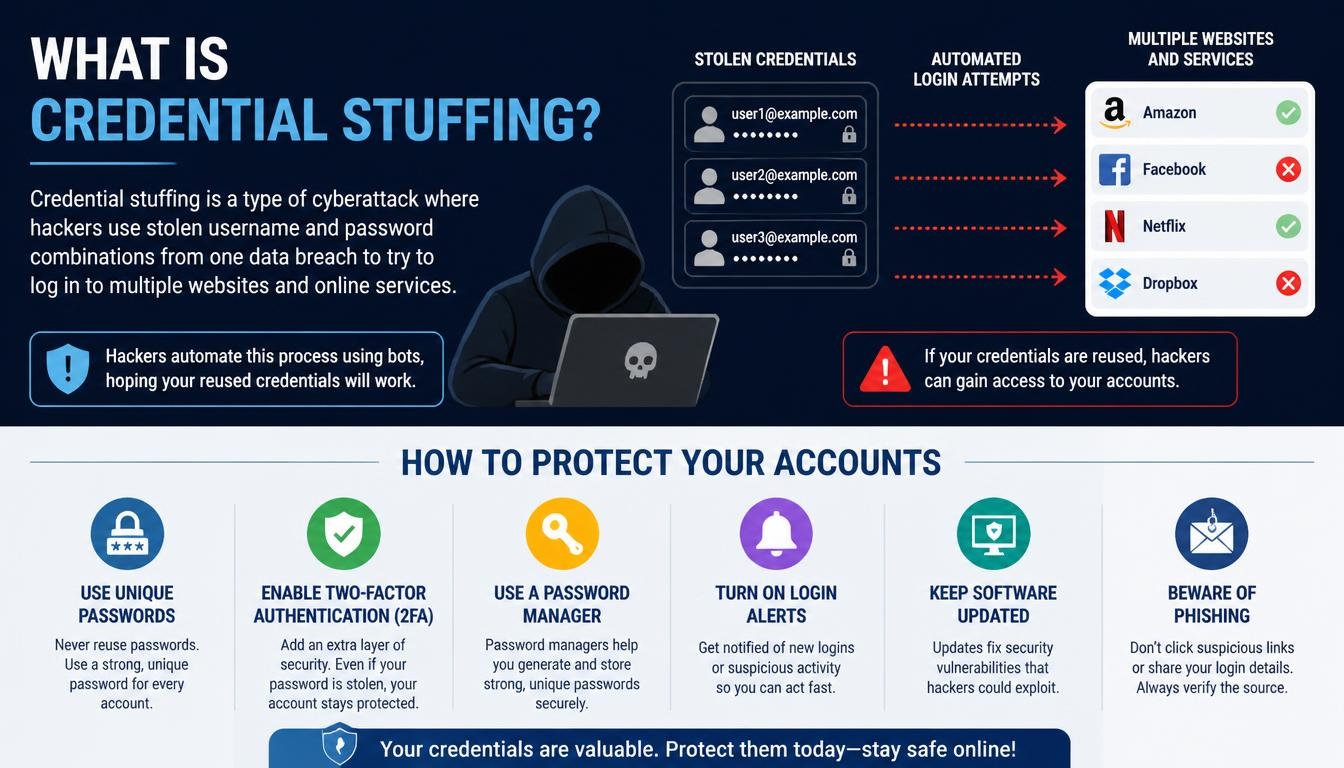
Credential stuffing is when attackers take lists of usernames and passwords leaked from one site and automatically try them on many others. By the end of this guide you will have unique passwords, a second login factor and basic login monitoring in place, which matters because one reused password can unlock your email, your hosting and your admin panel.
The jargon is simple. A “credential” is a username and password pair. A “breach” is when a site’s stored data is stolen. A “bot” is software that tries thousands of logins without a human. Attackers do not guess passwords here. They simply replay real ones that already worked somewhere, and they count on people reusing them.
What you need
- A list of your important accounts: email, domain registrar, hosting, website admin, banking, social media
- A password manager (a program that creates and stores a different password for each site)
- A phone or hardware security key for two-factor authentication (2FA, a second proof of identity besides your password)
- Admin access to your website or login system, if you run one
Step 1: Find out which accounts are exposed
Start by checking whether your email addresses appear in known breaches. The free service Have I Been Pwned lets you search an email address and shows which breaches included it. Search for your own address and any shared mailboxes your team uses.
If an address appears in a breach, assume the password you used on that site is known to attackers. Change it there first, then change it on every other site where you used the same or a similar password.
Treat your email account as the top priority. Anyone who controls your email can reset the password on almost everything else.
Step 2: Give every account a unique password
Install a reputable password manager and let it generate a long random password for each account. Aim for at least 16 characters. You only need to remember one strong master password, so make that one a long passphrase and never reuse it anywhere.
Work through your account list in this order: email, domain registrar, hosting, website admin, payment services, then everything else. Replace each old password with a new generated one and save it in the manager.
Do not make small changes to an old password, such as adding a number at the end. Attackers’ tools try these common variations automatically.
Step 3: Turn on two-factor authentication
Open the security or account settings of each important service and look for an option called two-factor authentication, two-step verification or multi-factor authentication. The exact name and menu position differ by service, so follow the prompts on screen.
Where you have a choice, prefer an authenticator app or a hardware security key over text messages. Text messages can be intercepted or redirected through SIM swapping, where an attacker tricks a phone company into moving your number to their SIM.
Save the backup or recovery codes the service gives you in your password manager. Without them, losing your phone can lock you out.
Step 4: Harden your own login pages
If you run a website or app with user logins, add defences on your side. Credential stuffing shows up as many failed logins from many different addresses in a short time.
Limit login attempts per account and per IP address, and slow down or temporarily block repeated failures. Add a bot challenge such as a CAPTCHA to the login form, ideally only after a few failed attempts so real users are not bothered. Offer or require 2FA for admin and customer accounts, and send users an email when a login happens from a new device.
If your site runs on WordPress, a security plugin that offers login limiting and 2FA can cover much of this. Check the plugin’s own documentation for the exact settings, as names change between versions.
Check that it worked
Search your email addresses again and confirm that you have changed the password on every account linked to a breach. Open your password manager and confirm that no two important accounts share a password. Many managers include a report that flags reused or weak passwords.
Log out of an important account and log back in. You should be asked for your second factor. If you run a site, try several wrong passwords in a row on a test account and confirm that the login slows down, blocks or shows a challenge.
Common problems and fixes
- I cannot remember all these passwords: you do not need to. The password manager fills them in, and only the master passphrase must be remembered.
- I lost my phone and cannot pass 2FA: use the saved backup codes. If you have none, use the service’s account recovery process, which can take days.
- A site rejects my long password: some sites cap length or block certain symbols. Use the longest password the site accepts, with a mix of characters.
- Real users get locked out by login limits: raise the failure threshold, or lock by IP address and account together rather than blocking an account outright.
- I found a breach that includes me but I do not recognise the site: change the password anyway if you may have reused it, and watch the account for unfamiliar activity.